Hubspot
Prerequisites for Configuring HubSpot Data Source
HubSpot Developer Account
Ensure you have a HubSpot Developer Account to proceed.
Authentication Methods
There are two ways to authenticate:
OAuth
Credentials Needed:
- Client ID
- Client Secret
- Refresh Token
Steps to Obtain OAuth Credentials
- Navigate to your HubSpot Developer Account.
- Go to Apps in the left pane.
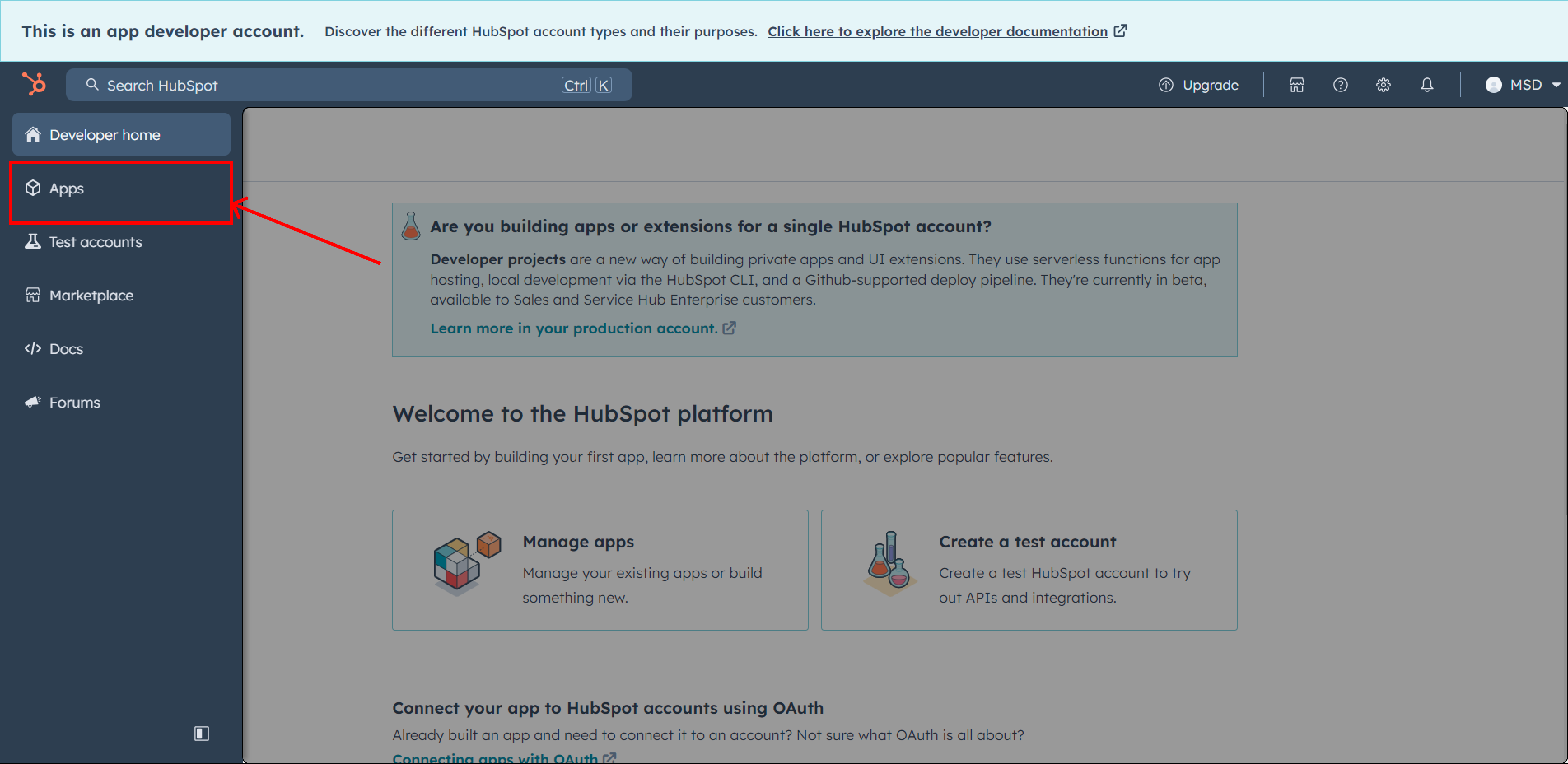
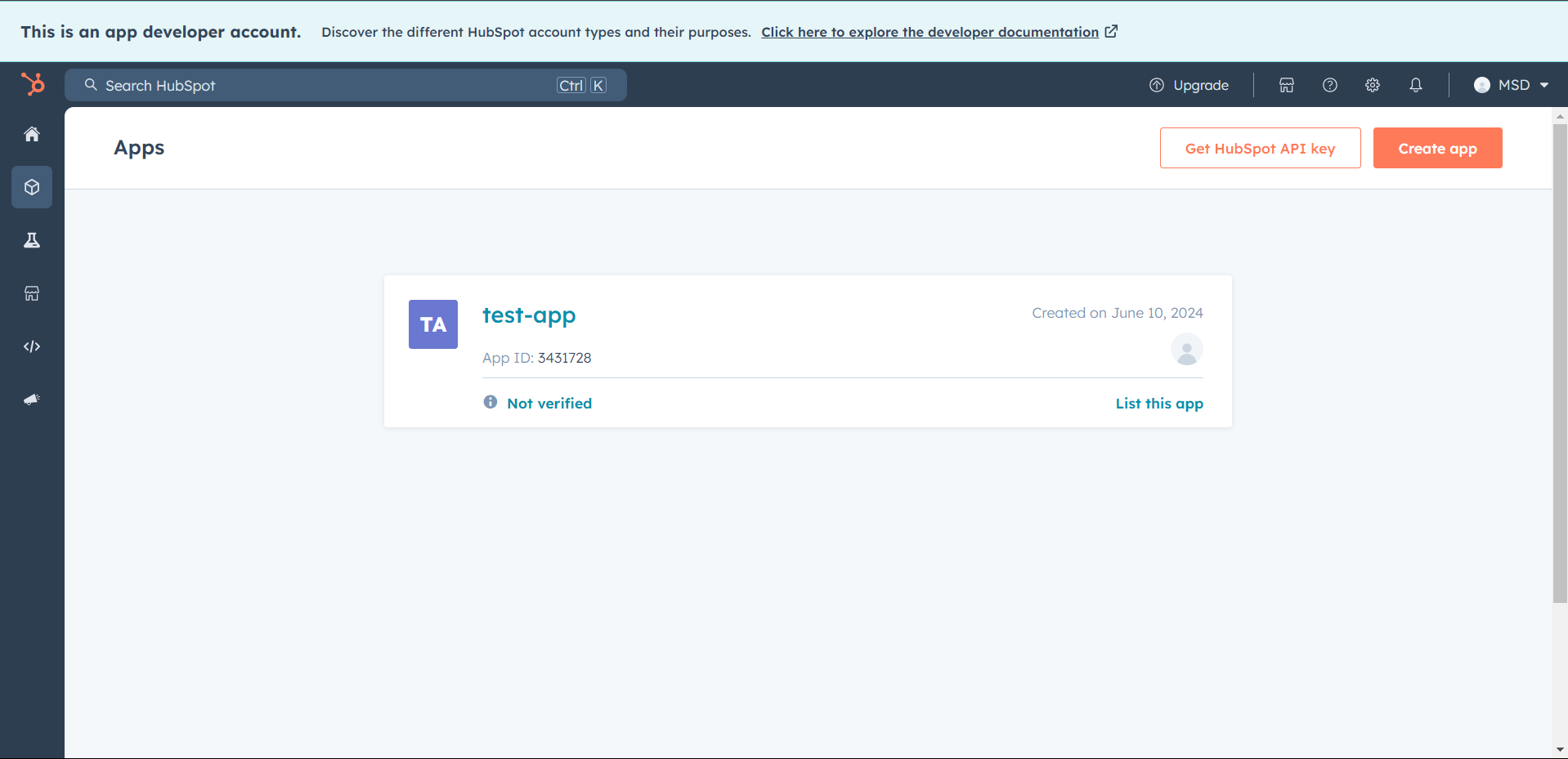
- Identify the required app or create a new app with the following permissions:
ticketse-commercemedia_bridge.readcrm.objects.goals.readtimelinecrm.objects.marketing_events.writecrm.objects.custom.readcrm.objects.feedback_submissions.readcrm.objects.custom.writecrm.objects.marketing_events.readcrm.pipelines.orders.readcrm.schemas.custom.read
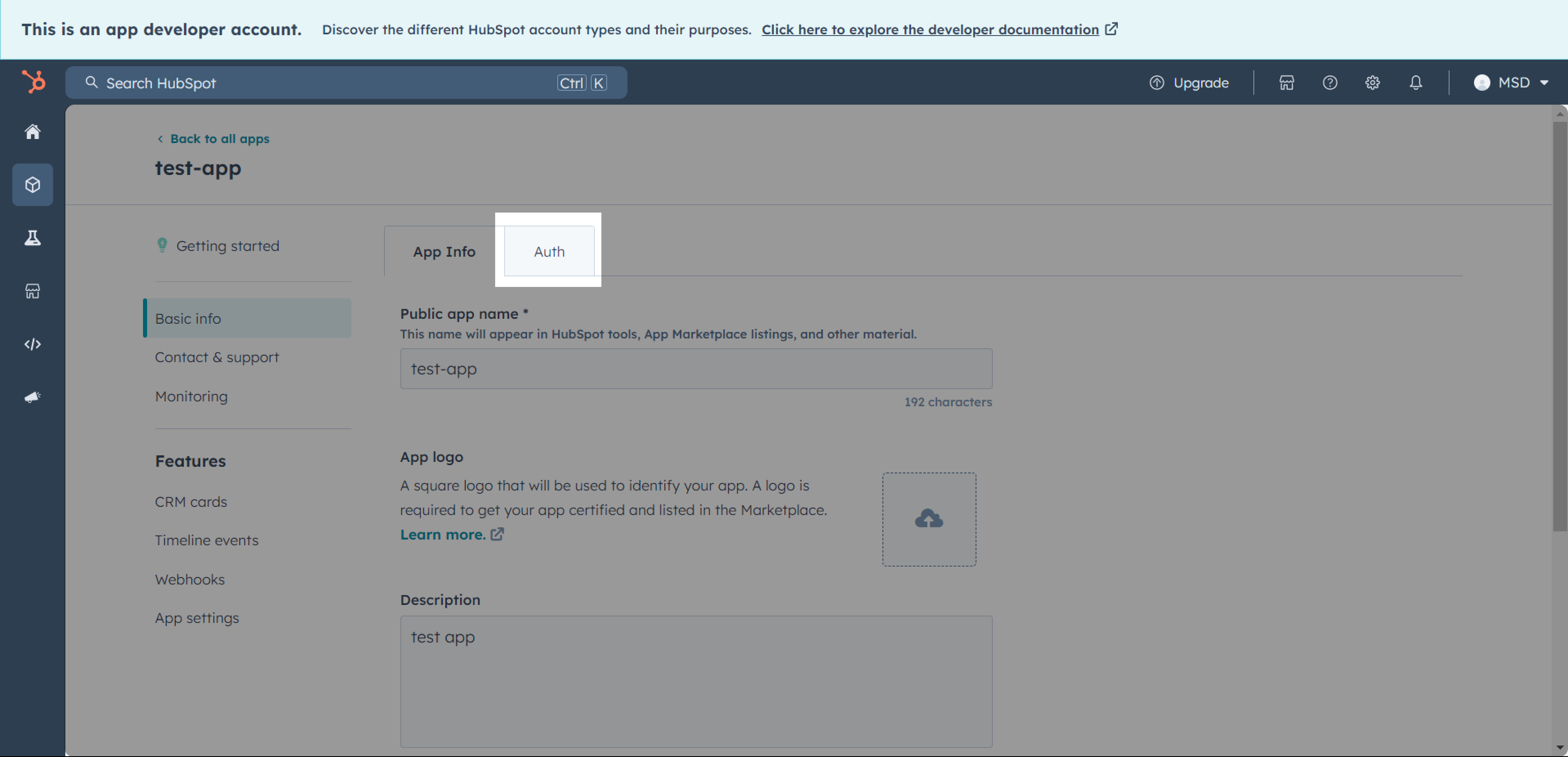
- In the app screen, navigate to the Auth Section.
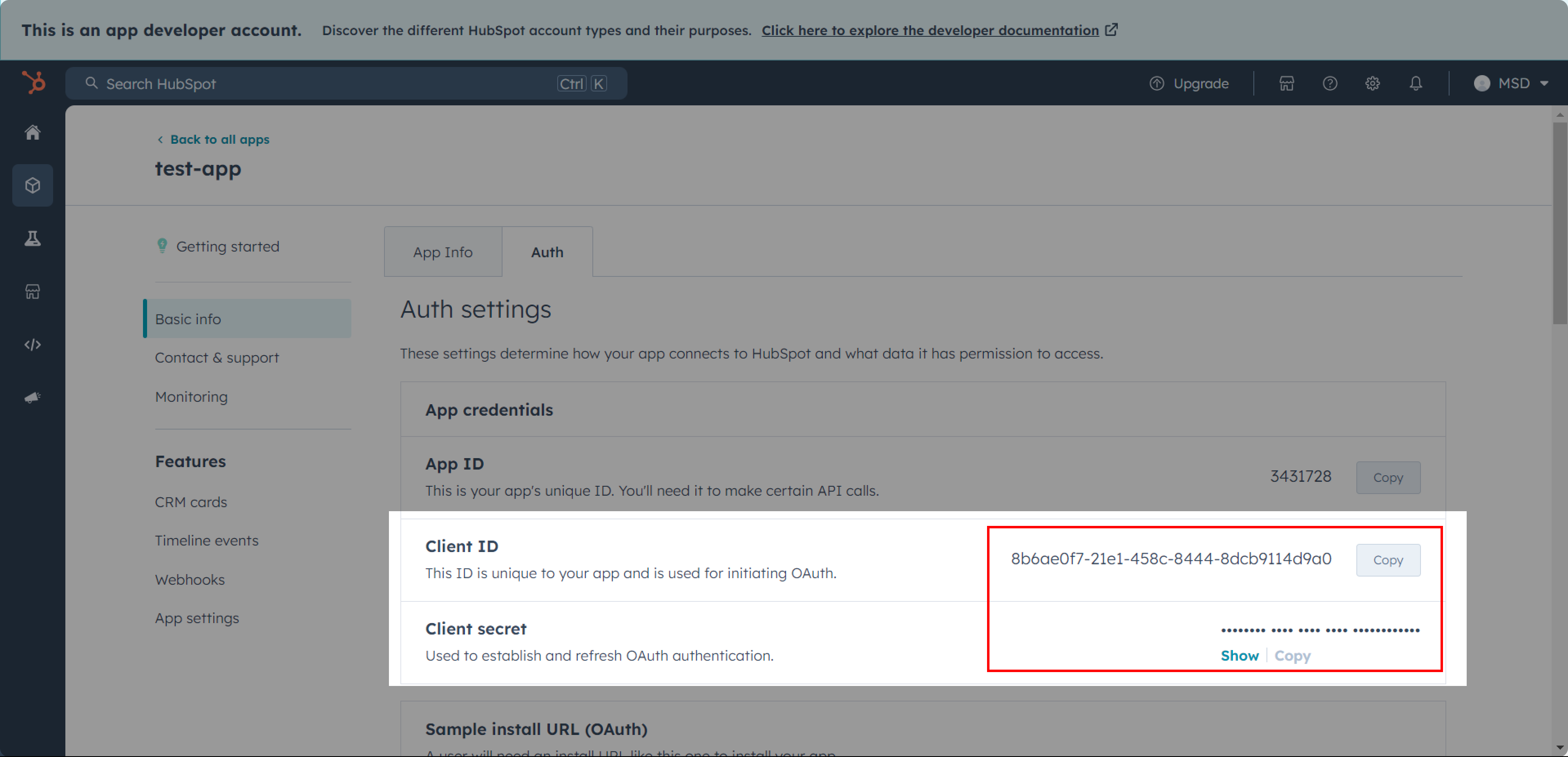
- Locate the Client ID and Client Secret in the Auth Section.
Scroll down to find the Sample Install URL (OAuth) and open it.
Authenticate your HubSpot account. You will be redirected to the app, where a code is included in the URL.
- Example Code:
c1c07bcb-9271-4fef-ae32-b9ff30da0b11
- Example Code:
Use the provided cURL to exchange the code for a Refresh Token:
curl --location 'https://api.hubapi.com/oauth/v1/token' \
--header 'Content-Type: application/x-www-form-urlencoded' \
--data-urlencode 'grant_type=authorization_code' \
--data-urlencode 'client_id=<placeholder_client_id>' \
--data-urlencode 'client_secret=<placeholder_client_secret>' \
--data-urlencode 'redirect_uri=<placeholder_redirect_uri>' \
--data-urlencode 'code=<placeholder_code>'
Using Postman for OAuth Authentication
Use an API platform like Postman to execute the cURL provided earlier. The response will include the Refresh Token, which is required for OAuth authentication.
Private App Authentication
Credentials Needed
- Access Token
Steps to Retrieve Access Token
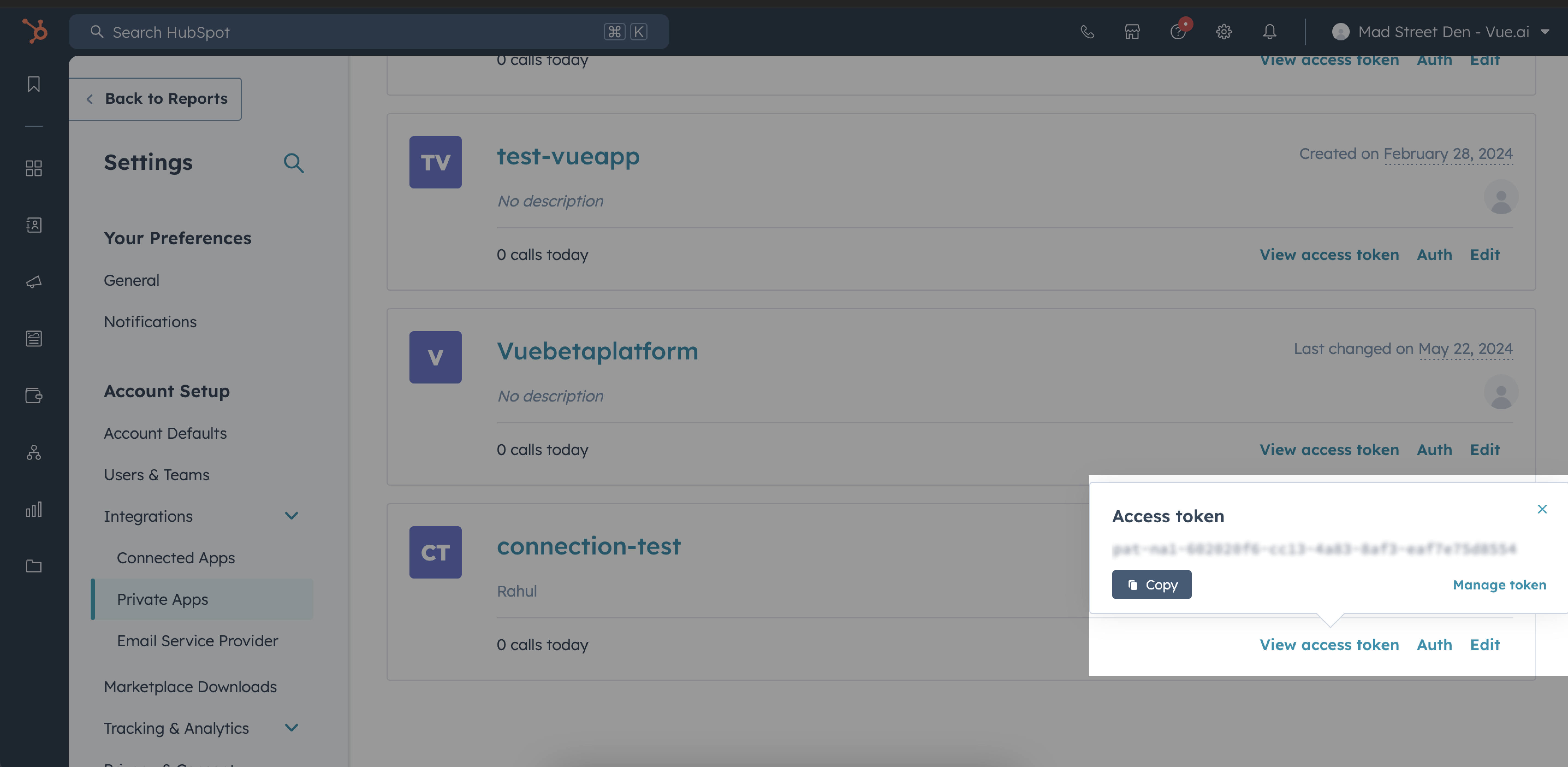
- Navigate to Integrations → Private Apps in your HubSpot account.
- Locate the required Private App.
- Click on View Access Token and copy the token.
Steps to Configure
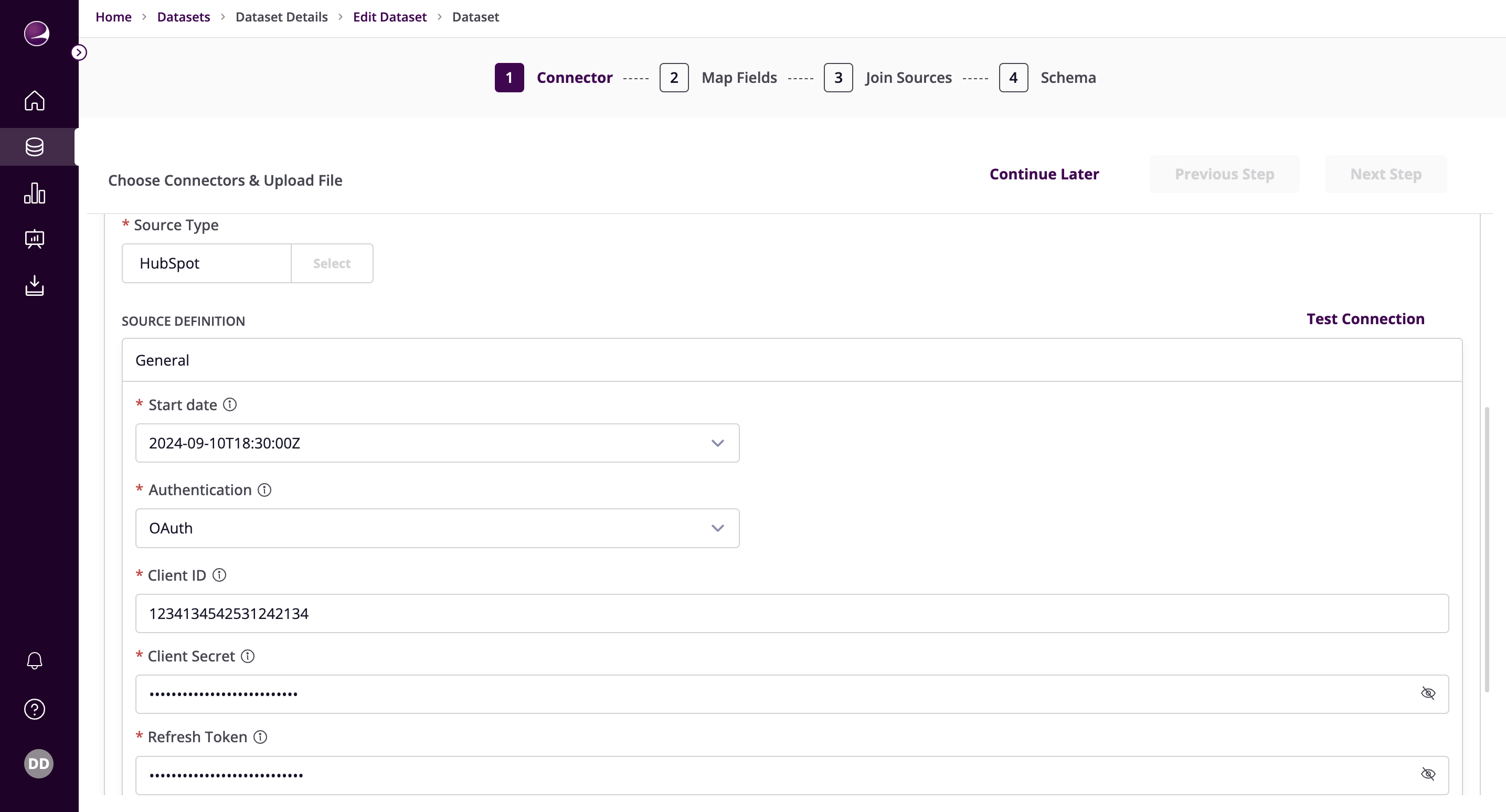
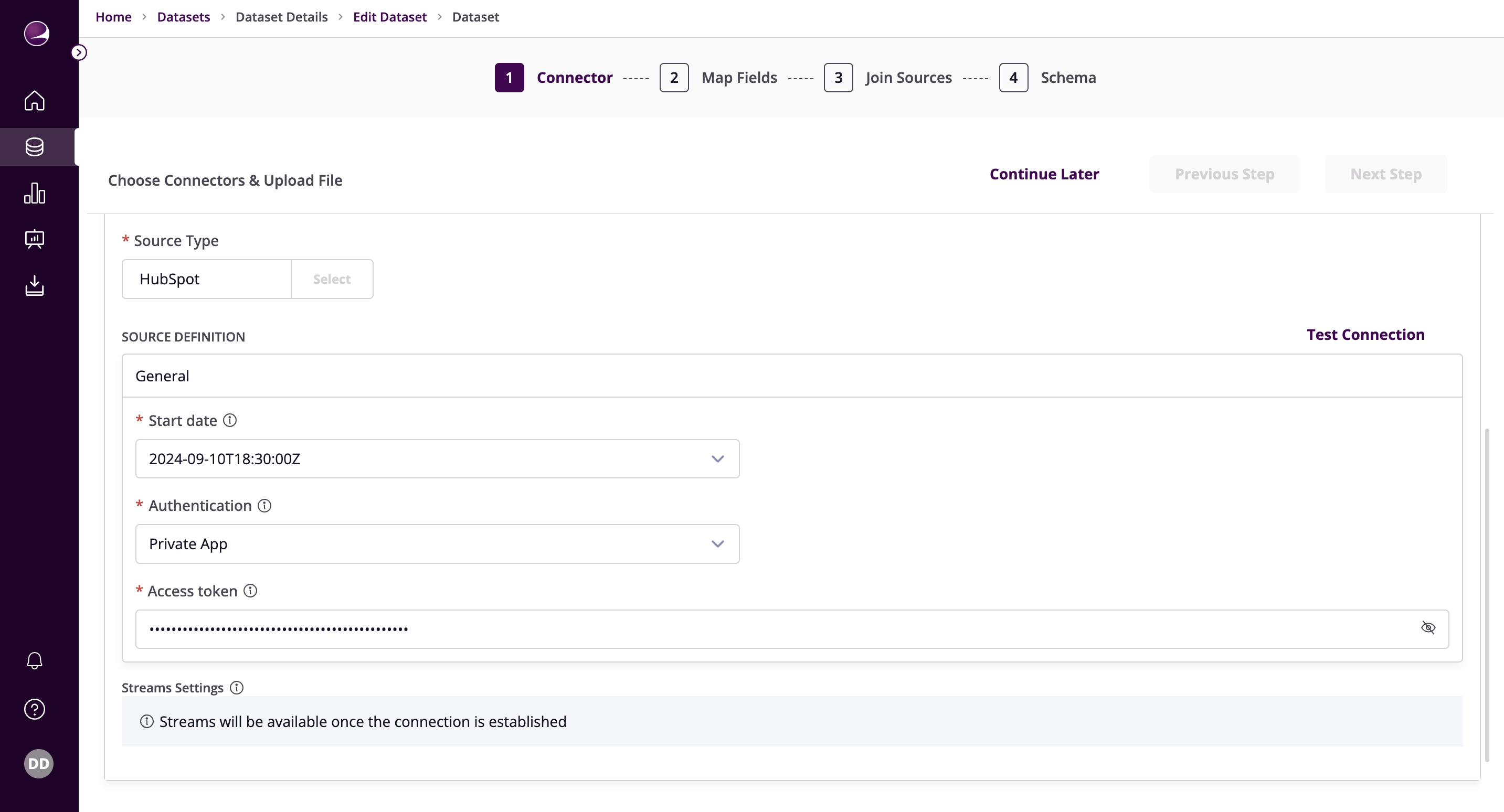
Select the Source Type as HubSpot.
Fill in the Start Date.
Choose the Authentication Method:
- OAuth:
- Paste the Client ID, Client Secret, and Refresh Token obtained earlier.
- OAuth Configuration
- Private App:
- Paste the Access Token obtained earlier.
- Private App Configuration
- OAuth:
Click on Test Connection to verify if the connection is established successfully.